Application
STB Emulator 1.3.0 Pro (Android) – English
STB Emulator Pro turns your Android device into a virtual MAG IPTV box. Perfect for IPTV services using MAC + Portal URL.
✅ Compatible with
- Android TV
- Android Box
- Firestick (manual install)
- Android tablet
📥 Download the app
Download STB Emulator Pro 1.3.0 APK
⚙️ Quick setup
- Install the APK
- Open STB Emulator
- Go to Settings
- Enter your Portal URL
- Restart the app
Note: your IPTV provider must activate your MAC address before it works.
This app does not include any channels or content. An active IPTV subscription is required.
TiviMate IPTV Player (Android) – English
TiviMate is one of the best IPTV apps for Android TV and Android Boxes. Modern UI, smooth performance, and remote-friendly navigation.
✅ Compatible with
- Android TV / Google TV
- Android Box
- Firestick (manual install)
📥 Download TiviMate APK
Recommended version (TiviMate 5.2.0)
Recommended for most devices and great for large playlists.
Stable version (TiviMate 4.7.0)
Best choice if your device is not compatible with 5.2, or if you prefer a proven stable version.
Latest official version (developer website)
Direct download from the official source.
Download from official website
🤔 Which version should I choose: 4.7 or 5.2?
- ✅ TiviMate 5.2.0 (recommended) : smoother, better playlist handling, excellent for large M3U files.
- ✅ TiviMate 4.7.0 : use it if your device is not compatible with 5.2 or if you want the most stable option.
⚠️ Important: avoid downloading versions 5.0 and 5.1 from random websites. They were widely reported as buggy on many devices. We recommend only 4.7 or 5.2.
Tip: for MTB Ultimate, we strongly recommend 5.2 because it handles very large M3U playlists better.
⚙️ Quick setup
- Install the APK
- Open TiviMate
- Select Add Playlist
- Enter your M3U URL or Xtream Codes credentials
- Let it load and enjoy
This app does not include any channels or content. An active IPTV subscription is required.
⭐ TiviMate Premium
You can purchase TiviMate Premium directly from the official website:
⚠️ Important: for some users, the subscription option is only visible when browsing from Canada. If you are not in Canada, use a Canada VPN so the Subscription / Premium option shows up.
How to install TiviMate on Firestick using Downloader?
On Amazon Firestick, you must use the Downloader app. You need to enter a direct APK URL (not a website button link).
Steps:
- Install Downloader from the Amazon App Store
- Open Downloader
- Enter one of the following direct URLs:
Version 5.2:
https://iptvsocial.media/apk/tivimate520.apk
Version 4.7:
https://iptvsocial.media/apk/tivimate470.apk
After download completes, install the APK and open TiviMate.
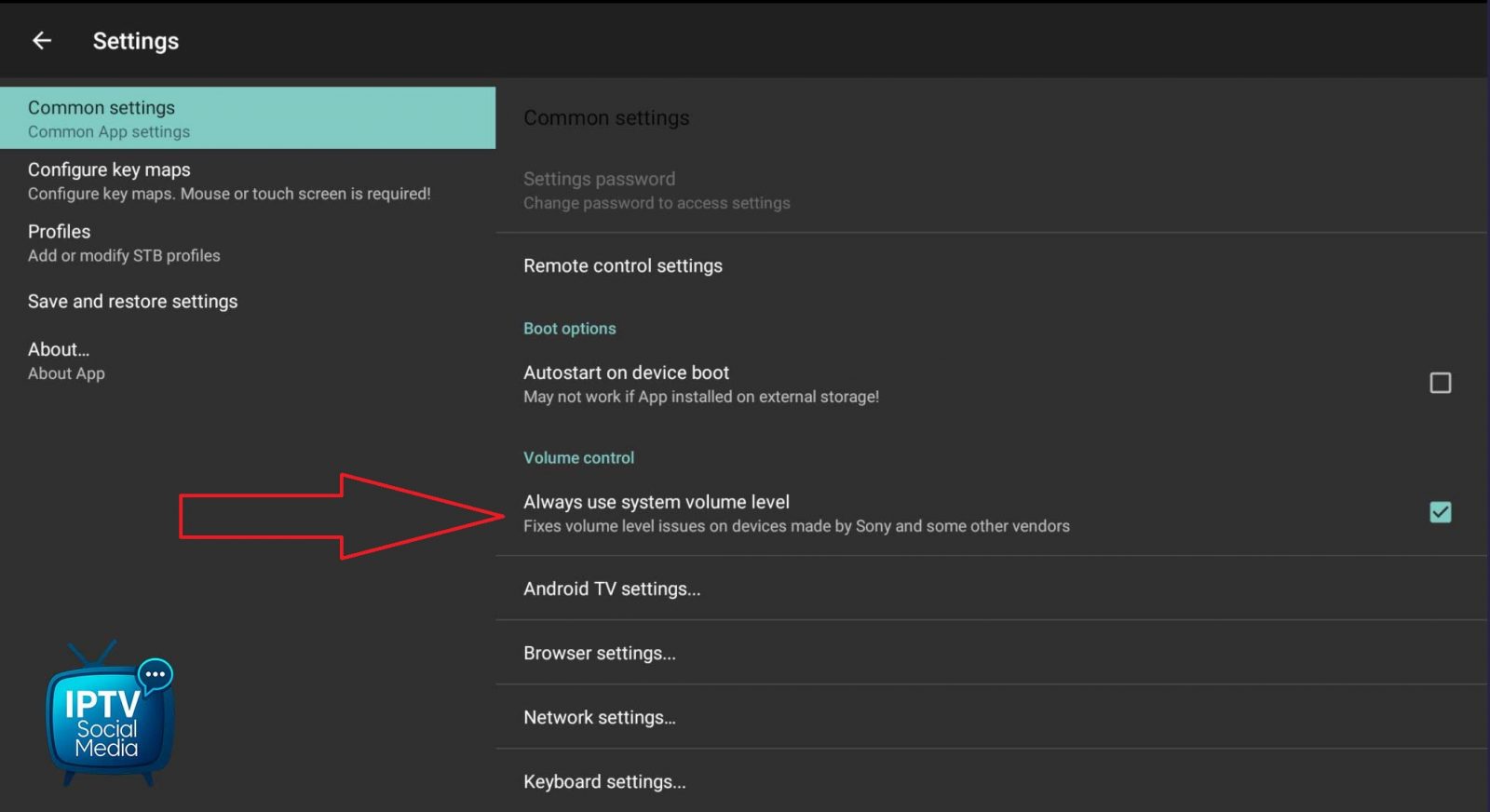
If the sound automatically changes when switching channels in STB Emulator Pro (for example volume set to 11 drops to 5 or 6), the issue is usually not related to the Diablo server but to an internal app setting.
Even if it seems MAC-related (stable with your MAC, unstable with the client’s MAC), the real cause is the internal volume handling of STB Emulator.
✅ Solution:
- Open STB Emulator Pro.
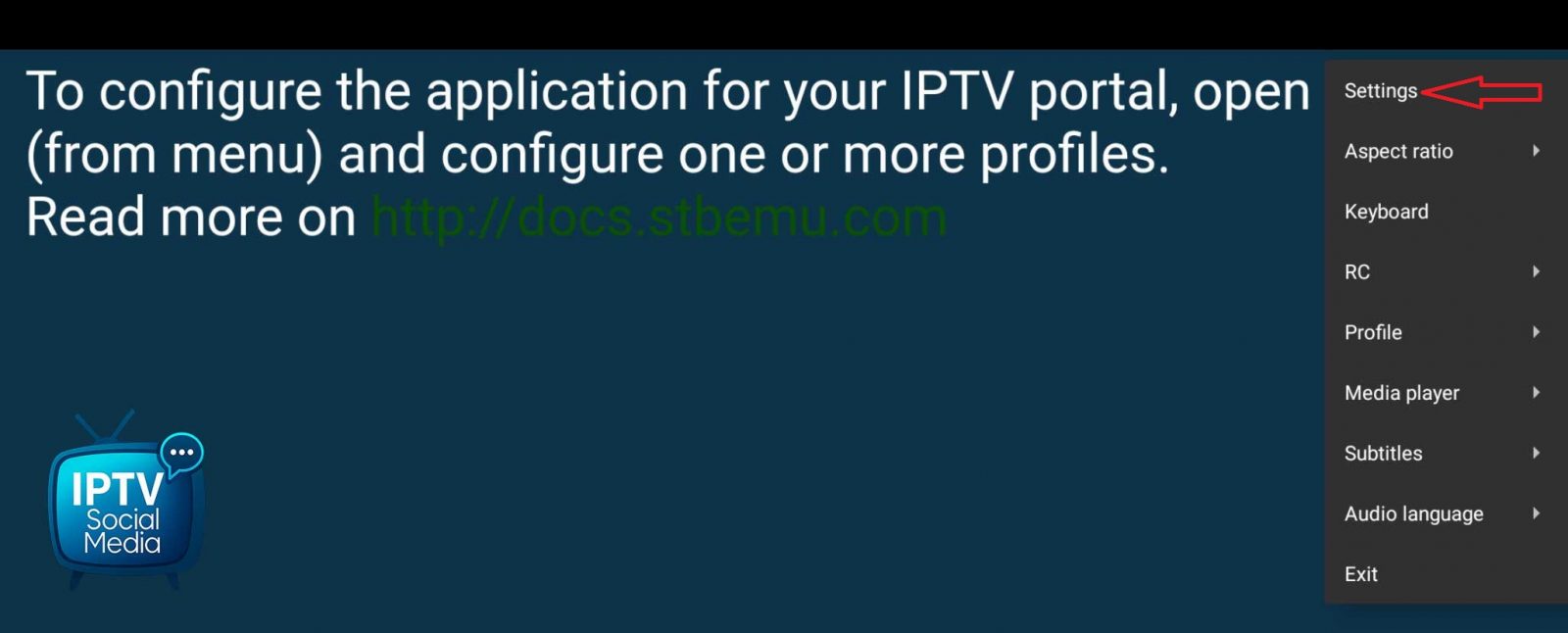
- Go to Settings.
 Click the image to enlarge
 - Enter the Volume control section.
- Enable “Always use system volume level”.
 Click the image to enlarge
Once enabled, the volume will remain stable when switching channels.
This issue took several days of testing to identify, but the fix is simple once you know it.
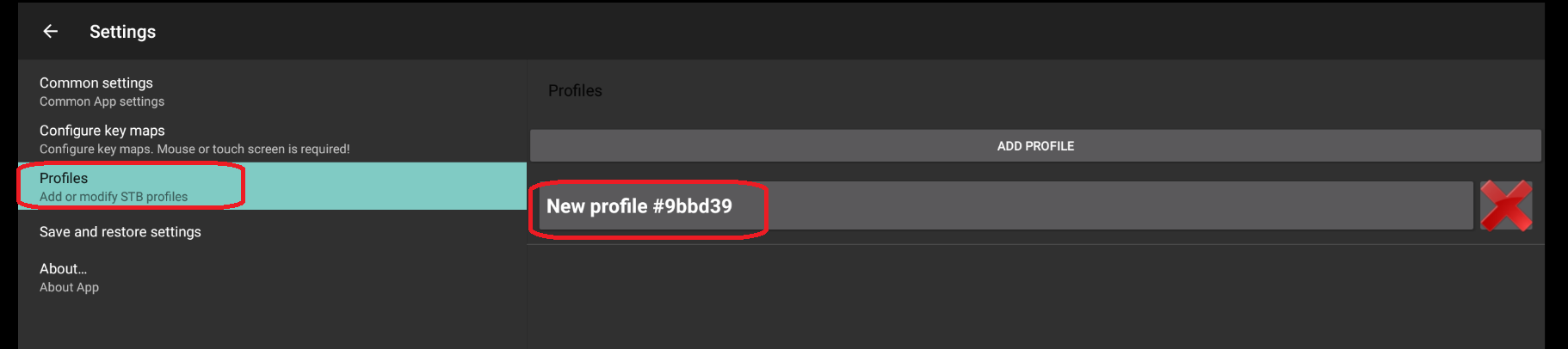
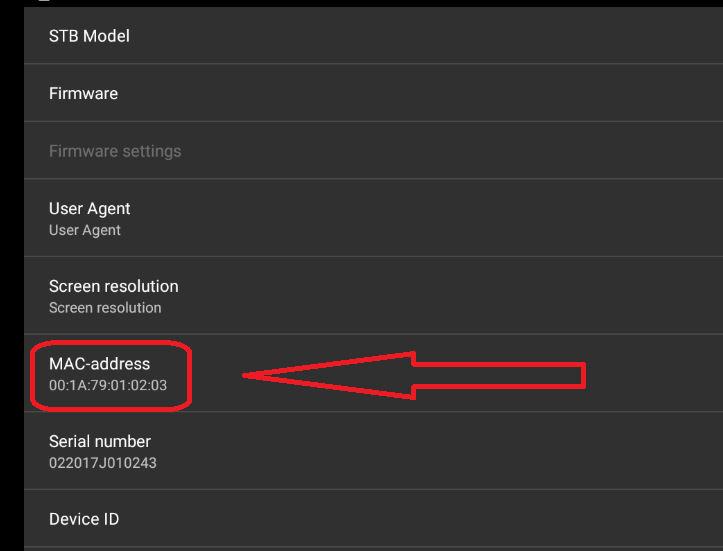
The STBEmu Pro MAC address is used to activate many Portal/Stalker IPTV services. You can find it inside the app profile.
- Open STBEmu Pro.
- Open the menu, then choose Settings.
- Go to Profiles.
- Select the existing profile.
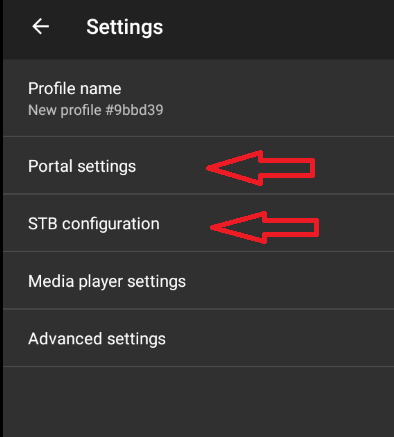
- Open STB configuration.
- Look for the MAC-address line. This is the address used for the subscription.
Important: do not change the MAC address unless Steven asks you to. A wrong MAC can prevent the service from being activated or loaded.

STBEmu Pro works with Portal/Stalker IPTV services. To configure your service, replace the profile Portal URL with the address provided in your client account.
- Open STBEmu Pro.
- Open the menu, then choose Settings.
- Go to Profiles.
- Select the existing profile or create a new profile.
- Open Portal settings.
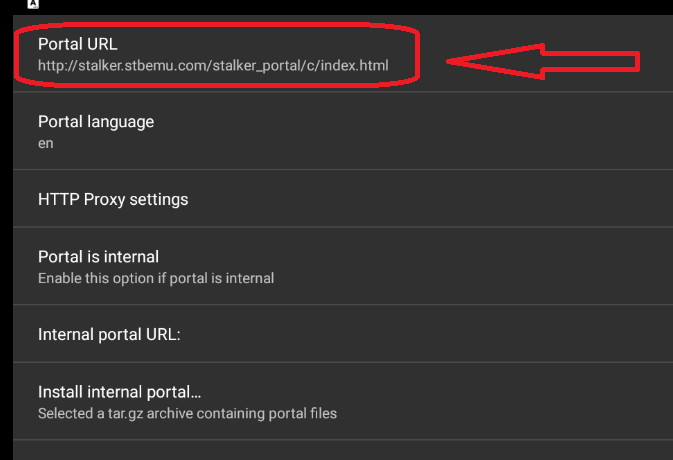
- Tap Portal URL.
- Replace the existing address with the Portal URL shown in My Account.
- Go back to the main menu.
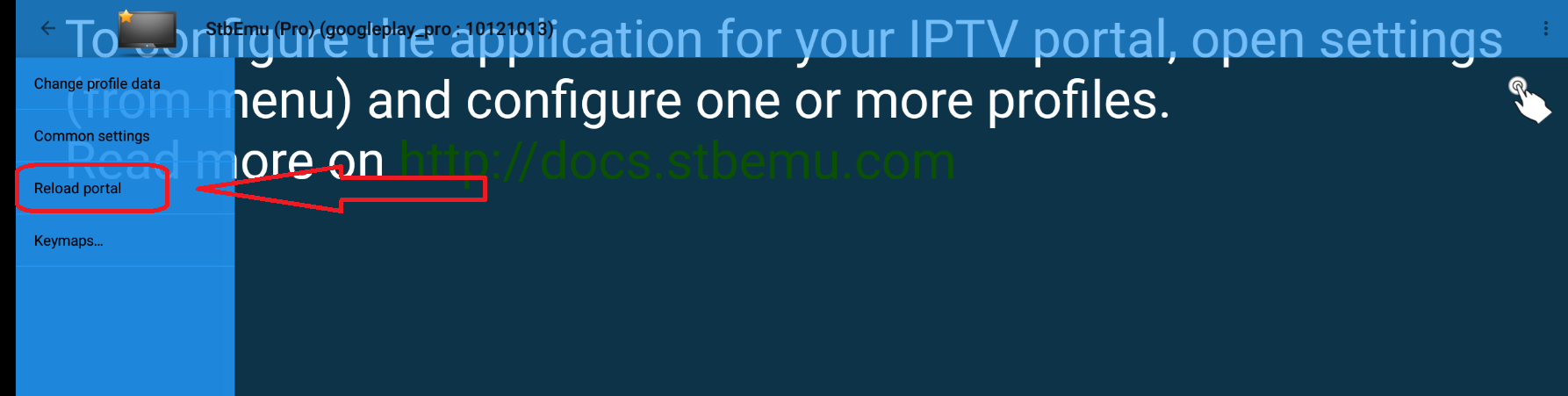
- Select Reload portal or restart the app.
Important: do not change the MAC address, Portal URL, or advanced settings unless Steven asks you to. If the service is expired, unpaid, or not activated yet, changing the portal will not fix the issue.