IPTV Social Media FAQ

❓ IPTV Devices

Guides, tutorials and frequent answers. The FAQ is continuously improving.

Questions

Categories

There is no single perfect box for everyone.

The right device depends on your budget, the IPTV service you use, and whether it is for home or travel.

Important to understand: the quality of the box directly affects the quality and stability on your TV.

An old 2GB RAM / 4GB storage box will not deliver optimal performance on a modern large screen TV.

What we recommend:

  • Minimum 4GB of RAM
  • Good compatibility with IPTV applications
  • Avoid very cheap boxes on Amazon (listed specs are not always accurate)

Formuler devices are known for their stability and their MyTVOnline app optimized for IPTV.

Firestick can be a good option for travel or simple use, but for a stable home setup, a dedicated Android box is usually better.

Important: avoid very old boxes or low-cost “8 core” models that are often unstable.

The best choice depends on your situation. We recommend speaking directly with us to get a recommendation based on your budget and needs.

We only sell quality devices, even for small budgets, and all come with warranty.

The STBEmu Pro MAC address is used to activate many Portal/Stalker IPTV services. You can find it inside the app profile.

  1. Open STBEmu Pro.
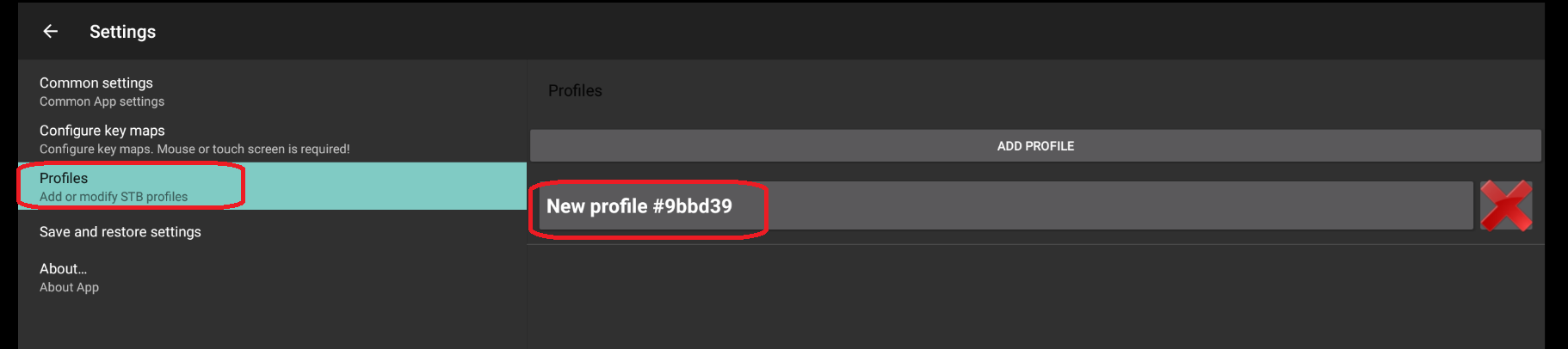
  2. Open the menu, then choose Settings.
  3. Go to Profiles.
  4. Select the existing profile.
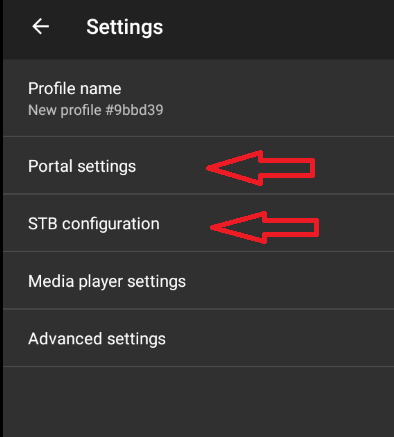
  5. Open STB configuration.
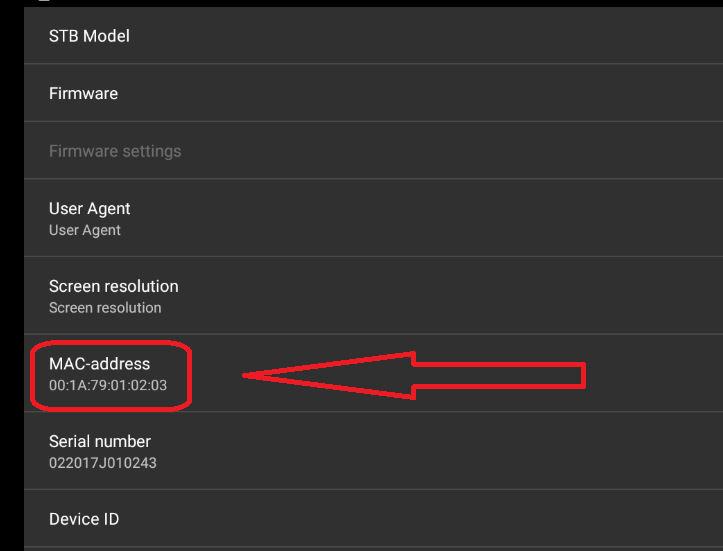
  6. Look for the MAC-address line. This is the address used for the subscription.

Important: do not change the MAC address unless Steven asks you to. A wrong MAC can prevent the service from being activated or loaded.

Open Settings in STBEmu Pro
Open Profiles in STBEmu Pro
STBEmu Pro profile options
MAC address in STB configuration

STBEmu Pro works with Portal/Stalker IPTV services. To configure your service, replace the profile Portal URL with the address provided in your client account.

  1. Open STBEmu Pro.
  2. Open the menu, then choose Settings.
  3. Go to Profiles.
  4. Select the existing profile or create a new profile.
  5. Open Portal settings.
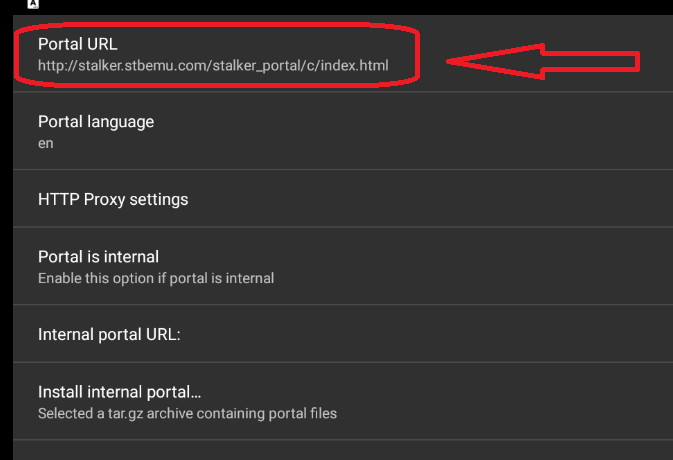
  6. Tap Portal URL.
  7. Replace the existing address with the Portal URL shown in My Account.
  8. Go back to the main menu.
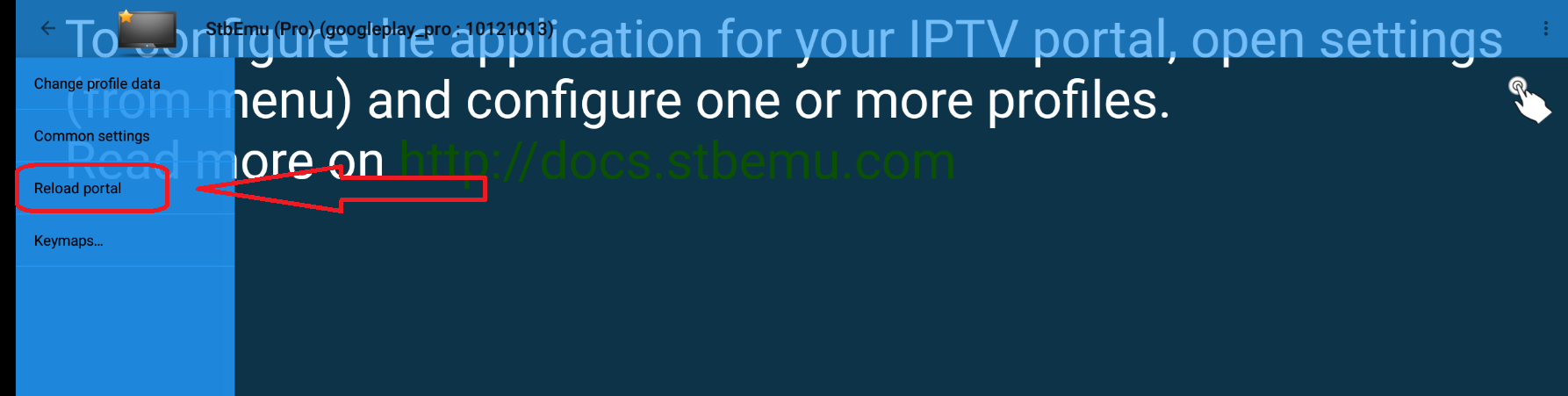
  9. Select Reload portal or restart the app.

Important: do not change the MAC address, Portal URL, or advanced settings unless Steven asks you to. If the service is expired, unpaid, or not activated yet, changing the portal will not fix the issue.

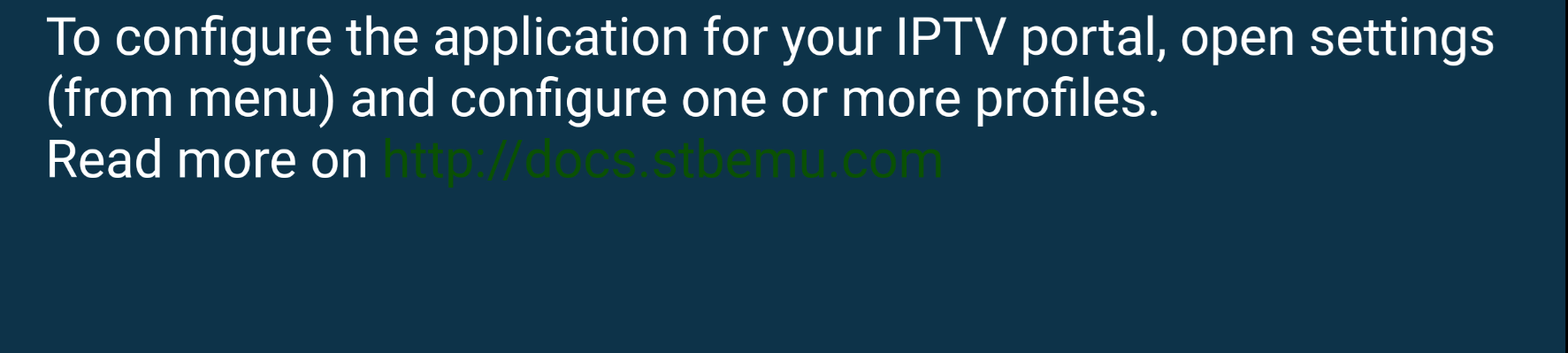
STBEmu Pro start screen
Open Settings in STBEmu Pro
Open Profiles in STBEmu Pro
STBEmu Pro profile options
Edit Portal URL in STBEmu Pro
Reload portal in STBEmu Pro
App home FAQ